
Checkout opens very soon. In the meantime, the free 3-day trial has every feature.
For Samsung Galaxy · on macOSYour phone’s desktop.
Right on your Mac.
Plug in your Galaxy and Samsung DeX opens in a Mac window — a full desktop with your Mac’s keyboard, trackpad and speakers. Unplug, and it’s gone.
Works with Samsung DeX on One UI 8 or later · macOS 13 or later · Apple silicon and Intel
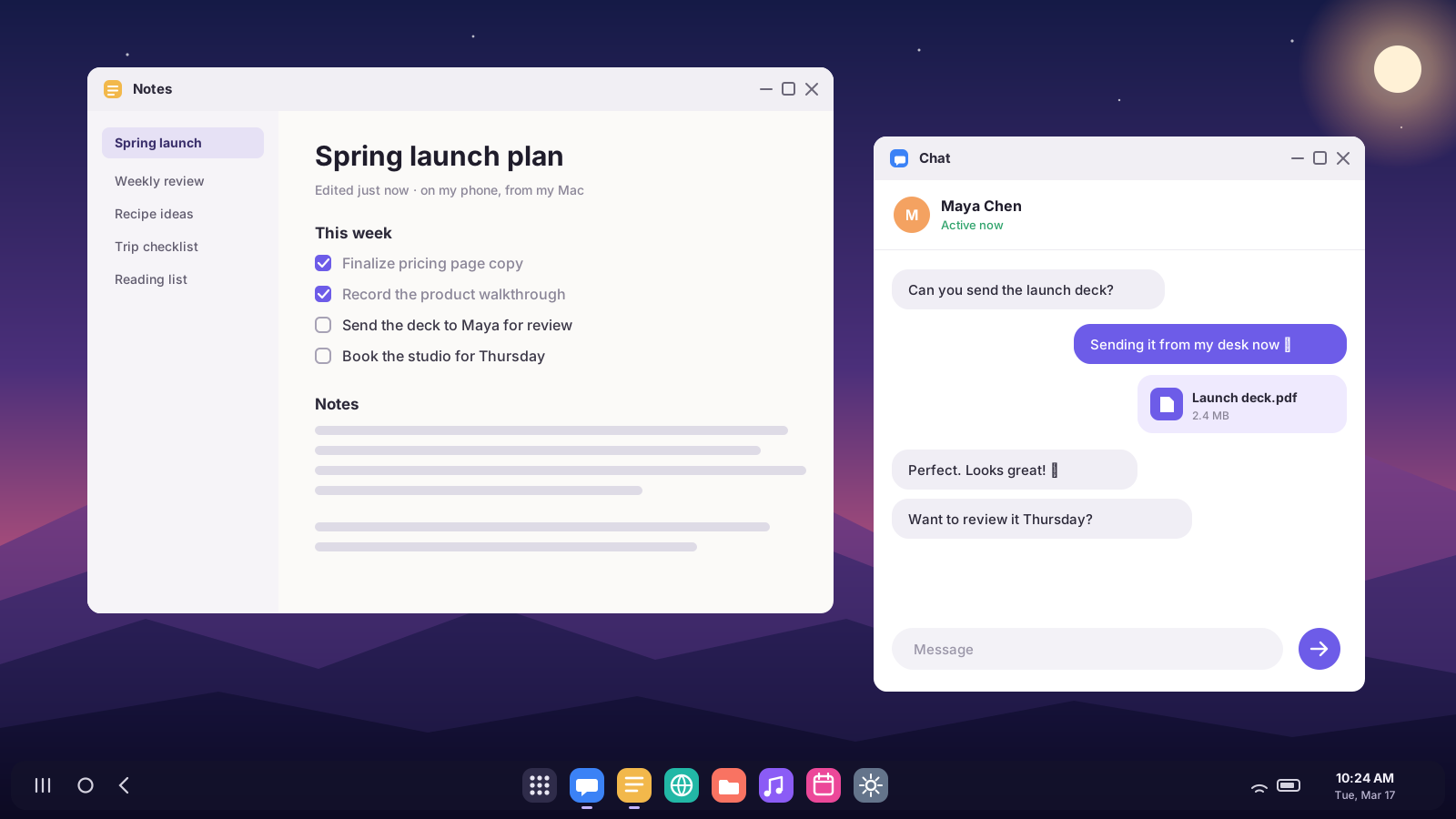
Desk mode in three steps.
No dock, no monitor, no cables beyond the one you already charge with.
Turn on USB debugging — once
A one-time switch in your phone’s settings. Deskbridge walks you through it, and so does this page.
Plug your phone into your Mac
Deskbridge lives in your menu bar and notices your phone the moment it connects. Samsung DeX opens in its own Mac window.
Work like you’re at a desk
Resizable windows, a taskbar, your apps side by side — driven by your Mac’s keyboard and trackpad. Unplug and the window closes.
Everything DeX should be on a Mac.
Samsung retired DeX for PC. Deskbridge brings the full desktop back — sharper and simpler than before.
Opens when you plug in
Connect your phone and DeX appears. Disconnect and it closes. Nothing to launch, nothing to click.
Landscape or portrait
A wide desktop, or a tall phone-style layout where apps look the way they do on your phone. One click to flip.
Secure Blackout
Your phone’s screen goes fully black while DeX keeps its whole desktop. Touch the phone or unplug it, and it locks instantly.
Unlock from your Mac
Phone locked? Press ⌥⌘U and type your PIN on your Mac. Deskbridge enters it on the phone — and never stores it.
Apps in their own windows
Pop WhatsApp, Messages or any phone app into its own Mac window, sized like your phone. Press ⌥⌘O and type its name.
Calls on your Mac
See who’s calling — phone calls and WhatsApp — and answer or decline right from a Mac banner.
Notifications on your Mac
Your phone’s notifications land in Notification Center. Click one and that app opens in its own window.
Quiet while you work
Your phone switches to Do Not Disturb while DeX is open, and back when you’re done — even if you just unplug.
Crisp at any size
Match your Mac’s display, or pick 1080p, 1440p or 4K. Choose smaller, default or larger text — it stays sharp.
Your Mac’s keyboard, trackpad and clipboard
Type, click, scroll and right-click in DeX with the keyboard and trackpad you already use. Copy on one, paste on the other.
Phone audio on your Mac
Videos, music and calls from DeX play through your Mac’s speakers or headphones (Android 11 and later).
Drag and drop files
Drop a file onto the DeX window to send it to your phone’s Downloads. Drop an APK to install it.
Wireless, too
Pair over Wi-Fi with a pairing code and use DeX without the cable.
Lives in your menu bar
Starts at login and stays out of the way until your phone connects. Every option is one click away.
Private by design
No account and no cloud. Everything travels directly between your phone and your Mac, over USB or your own Wi-Fi.
Wide when you need room.
Tall when you need to read.
Landscape for spreadsheets, side-by-side apps and video. Portrait gives you a big phone-style layout — apps show one clean column instead of squeezed tablet panes. Perfect for chat, feeds and long reads. Switch any time from the menu bar; DeX re-lays itself out in about two seconds.
- Sized to fit your Mac’s screen, or choose 1080p, 1440p or 4K
- Text size that suits you: smaller, default or larger
- Rotate any time with ⌥⌘R, go full screen with ⌘F
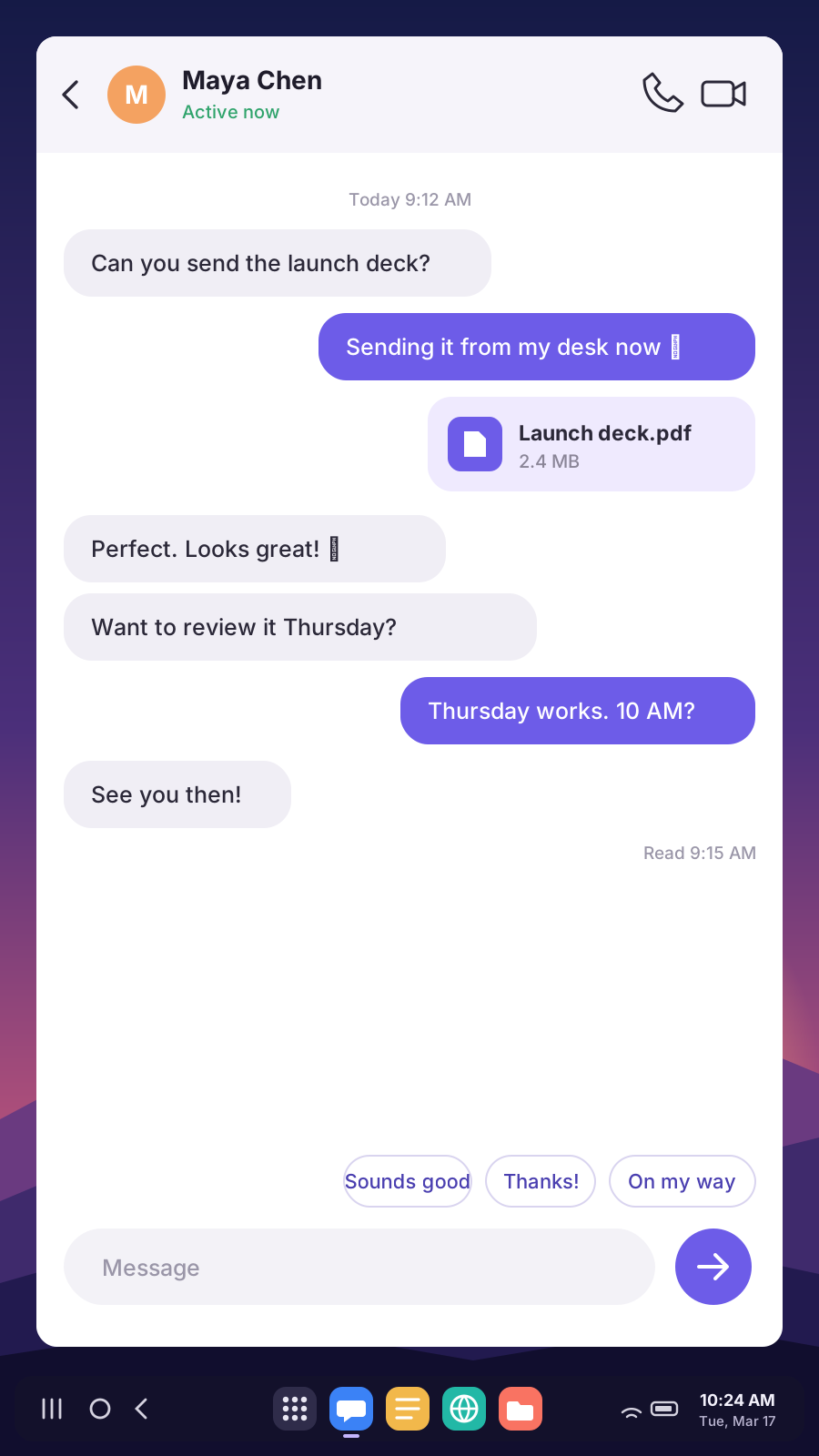
Screen off. Desktop on. Phone protected.
Turn on Blackout and your phone’s screen goes completely black — on OLED displays, black pixels don’t light up at all — while DeX keeps its full desktop, dock and keyboard on your Mac. Your phone stays protected the whole time.
- Touch the phone, unplug it or close DeX — it locks instantly
- Hit the power button by habit? Deskbridge wakes the phone so DeX never freezes
- Locked anyway? Press ⌥⌘U and unlock it from your Mac’s keyboard
- Switch it on or off from the menu bar, or have it start automatically
Your phone, all the way onto your Mac.
Leave your phone face-down. Calls, notifications and individual apps come to you — in windows and banners that feel at home on a Mac.
- Incoming calls — phone and WhatsApp — with Answer and Decline
- Notifications in Notification Center; click to open the app
- Any app in its own phone-sized window, alongside your Mac apps
- Do Not Disturb on your phone while DeX is open
Half the price. Pay once.
No subscription, no account, no upsell. Plug in free first and check DeX works on your phone — then keep it for $12.
Deskbridge
Plus applicable sales tax.
- Every feature, forever
- Unlimited phones on your Mac
- All future updates included
- 3-day free trial to check your phone works
- 14-day refund, no questions asked
What DeX on a Mac costs
Secure checkout by Stripe. Your license key appears the moment you pay — paste it in, or click once to activate.
What you need
Two minutes of setup, one time.
A Samsung Galaxy with One UI 8+
For the full DeX desktop. Verified on Galaxy Z Fold 7. Other Android phones (Android 5 and later) get screen mirroring instead of DeX.
A Mac on macOS 13+
Ventura or later, on Apple silicon or Intel.
A USB cable — or Wi-Fi
Any data-capable USB cable, or wireless pairing on the same network.
Turn on USB debugging (one time)
- On your phone, open Settings › About phone › Software information.
- Tap Build number seven times. Enter your PIN if asked — you’ll see “Developer mode has been turned on.”
- Go back to Settings, open Developer options (at the bottom), and turn on USB debugging.
- Plug your phone into your Mac. When your phone asks “Allow USB debugging?”, tick Always allow from this computer and tap Allow.
That’s it — Deskbridge takes it from here, every time you plug in.
Questions, answered
Is this the real Samsung DeX?
Yes. Deskbridge doesn’t imitate DeX — it gives your phone a virtual display, and your Galaxy runs its own DeX desktop on it. Deskbridge shows that display in a Mac window and sends your keyboard and trackpad to it. More in how to use Samsung DeX on a Mac.
Which phones work?
The full DeX desktop needs a Samsung Galaxy running One UI 8 or later — we’ve verified it on the Galaxy Z Fold 7. Other Android phones (Android 5 and later) still work for screen mirroring with your Mac’s keyboard and trackpad, but without DeX. See which phones support DeX on a Mac.
Can I use my phone while DeX is open?
Yes. DeX runs on its own display, so your phone’s screen keeps doing its own thing. Or turn on Blackout to keep it dark.
What happens if I press my phone’s power button?
The power button puts your phone to sleep, and a sleeping phone pauses DeX. Deskbridge notices within a second or two, wakes the phone and switches on Blackout, so DeX carries on. Your phone will have locked, though — press ⌥⌘U to unlock it from your Mac. For no interruption at all, use Blackout instead of the power button. How Secure Blackout works.
Why does DeX lose its dock when my phone is locked?
That’s Samsung’s security: while your phone is locked, DeX hides the apps in its dock and won’t accept typing, so nobody can use your phone from the desktop. Unlock it — from your Mac with Unlock Phone… (⌥⌘U), or with your fingerprint — and everything comes straight back. Secure Blackout keeps your phone unlocked behind the black screen so this doesn’t happen in normal use.
Does anything get installed on my phone?
Only a tiny Deskbridge helper app, installed for you over the cable. It has no network access. It can lock your phone — that’s how Secure Blackout locks it the instant it’s touched — and, only if you turn on notifications, app calls or Do Not Disturb, it gets notification access. You can revoke either in your phone’s Settings at any time.
Can I answer calls on my Mac?
You’ll see who’s calling — phone calls by default, WhatsApp and other app calls if you turn them on — and can answer or decline from the Mac banner. The conversation itself stays on your phone (use its speaker or your earbuds); your Mac doesn’t become the microphone.
Does Deskbridge read my notifications?
Only if you turn on Show Phone Notifications on Mac. Then your phone sends each notification over the cable straight to your Mac’s Notification Center — nothing is stored, logged or sent anywhere else.
Is it safe to type my PIN on my Mac?
Deskbridge sends what you type straight to your phone over the cable and keeps nothing — it isn’t saved, logged or sent anywhere else. It’s the same as typing on your phone, just with a better keyboard.
Does it work wirelessly?
Yes. Turn on Wireless debugging on your phone and pair with the code it shows. A wired connection gives the smoothest picture; Wi-Fi is great for a cable-free desk. If your phone restarts, re-pair or plug in once to reconnect.
Does my data go anywhere?
No. There’s no Deskbridge account and no cloud service. Your screen, audio, clipboard and files go straight between your phone and your Mac. See the privacy policy.
How does the free trial work?
Download Deskbridge, plug in your phone and DeX opens on your Mac — that’s the whole check. Every feature works for 3 days, no card and no sign-up. Keep it for $12 whenever you’re ready; if it doesn’t work out after you buy, the 14-day refund has you covered.
What if it doesn’t work for me?
Email support@elcodev.com within 14 days of buying and we’ll refund you in full. No questions asked.
Is Deskbridge made by Samsung?
No. Deskbridge is an independent app by Elco Dev that works with Samsung DeX. It’s built on scrcpy, the well-loved open-source screen-sharing tool.
Guides
Everything about running Samsung DeX on a Mac — with or without Deskbridge.
Bring your phone’s desktop to your Mac.
Plug in free and see it work. Then $12, once, for good.